 MyTuitionClass
The parents' family page
Every parent gets one private page for all their children. There's no app to install and no password: whoever has the link can open it, so send it only to the parent.
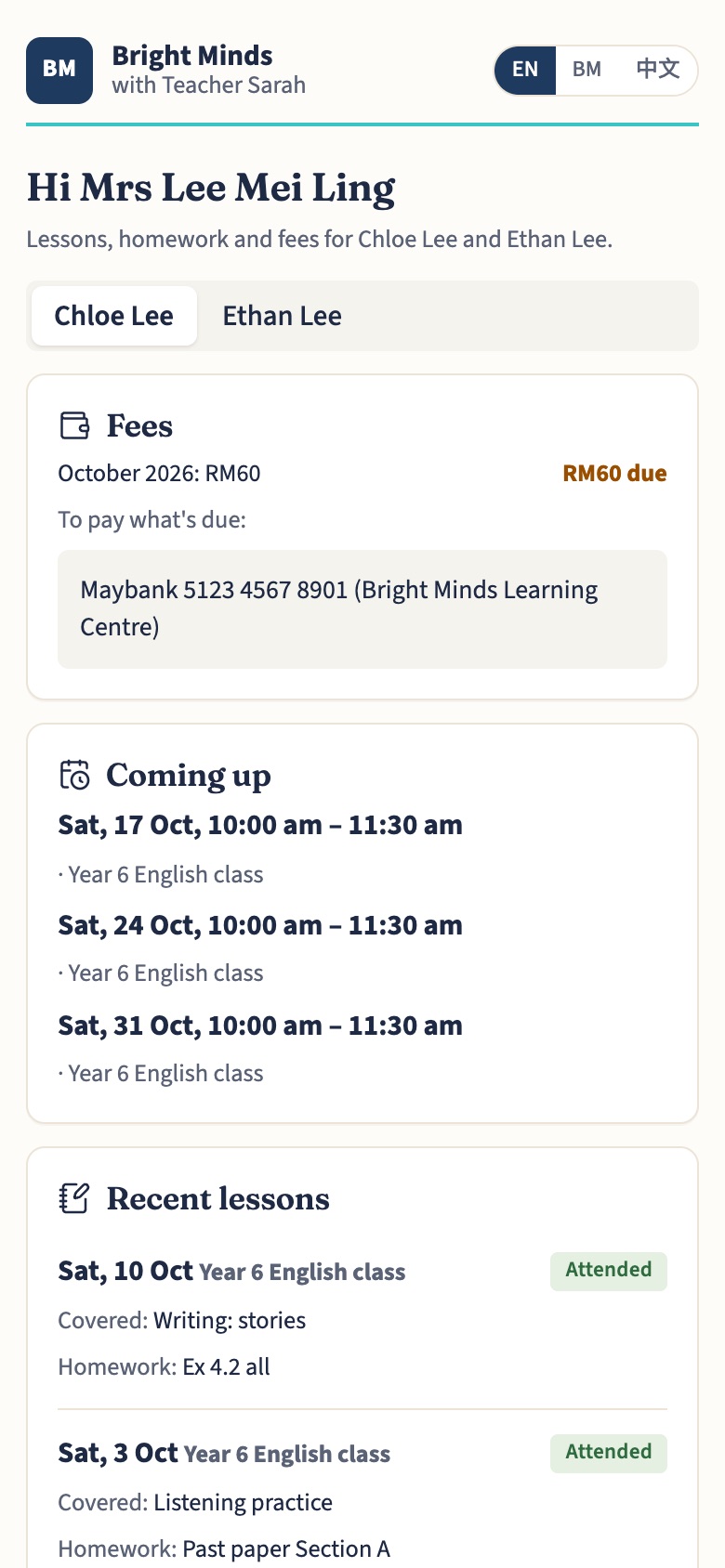
What parents see
Your centre's name and logo at the top, then for each child:
- Coming up: their lessons and classes for the next three weeks, and a Book or change button if they have a booking link.
- Recent lessons: what was covered, the homework, and how it went.
- Results, with a chart of their progress.
- Notes & worksheets their teachers shared.
- Fees: what's due and your payment details, their prepaid balance, and links to pay a top-up or a class place.
- Payments you've recorded.
Invoices aren't on the family page: you send each invoice as its own link (see Fees, prepaid packs and invoices).
Send the link
- Go to Students and open the Parents tab.
- Tap Family page on the parent's row.
- Tap Send on WhatsApp to open WhatsApp with a short message and the link ready, or Copy it.
Each child must be linked to their parent: choose the Parent on the student, or tick the Children on the parent. If a link reaches the wrong person, tap Make a new link: the old one stops working.
Languages
Parents can switch between EN (English), BM (Bahasa Melayu) and 中文 (Chinese) at the top of the page. The first time, it follows their phone's language, and their choice is remembered on that phone. The same goes for your timetable, booking, payment and invoice pages.
The messages you send are in your own wording. To write them in Malay or Chinese, see Messages to parents and WhatsApp.
Add results and notes
- A student's result: on Students, open the ⋯ menu and choose Results. Add the title, the score or grade, and whether it was A test I gave or Their school's exam.
- A test for the whole class: open the session on the Calendar and tap Test results.
- Notes and worksheets: open a lesson on the Calendar to share files or links for that lesson, or tap Materials on a class for the whole class. Files can be up to 20 MB.