 MyTuitionClass
Group classes and the register
A class meets every week with a group of students. Each student pays for the sessions they attend: absences are never charged.
Add a class
- Go to Classes and tap New class.
- Fill in the Class name, Price per session (RM) and Class size (leave it empty for no limit).
- Add an Online class link, or choose a Room if it's in person.
- Under Every week, set the Day, Starts at, Length (min) and First week.
- Choose where Class reminders go: to each student's parent, or as one message for you to post in the class group chat.
- Leave Sign-up as Off for now (see Sign-ups from parents), and tap Add class.
The sessions appear on the Calendar. To change the day or time later, or add a second weekly time, use Recurring.
Put students in the class
On the class, tap Students. Under Add a student, choose the student, the date they start (From), and Their price (RM) if it's not the class price. Then tap Add to class. New students need adding on the Students page first.
An own price for one student: change the price box next to their name at any time. Leave it empty to go back to the class price.
Take the register
- Open the session on the Calendar and tap Take register. Sessions still to do are also listed under To do › Past lessons.
- Mark each student Present, Absent or Away. Everyone else present marks the rest in one tap.
- Fill in Covered and Homework. You can add a short note on how each student did, and the plan for the next class.
- Tap Save register.
Students marked Present are charged the class price, or their own price. Absent and Away students aren't charged. After saving you can tap Prepare summaries: each parent whose child has a note gets a lesson summary, ready in Messages. Summaries need the Homework filled in (it can say "None").
Before the class starts, the button reads Mark someone away. A student marked away won't get the reminder or be charged.
A drop-in guest
For a trial, a make-up or a one-off, open the session and tap Student for this session only. Choose the student, set a price (0 for a free trial, or empty for the class price), and tap Add. They're in this session only.
Rooms
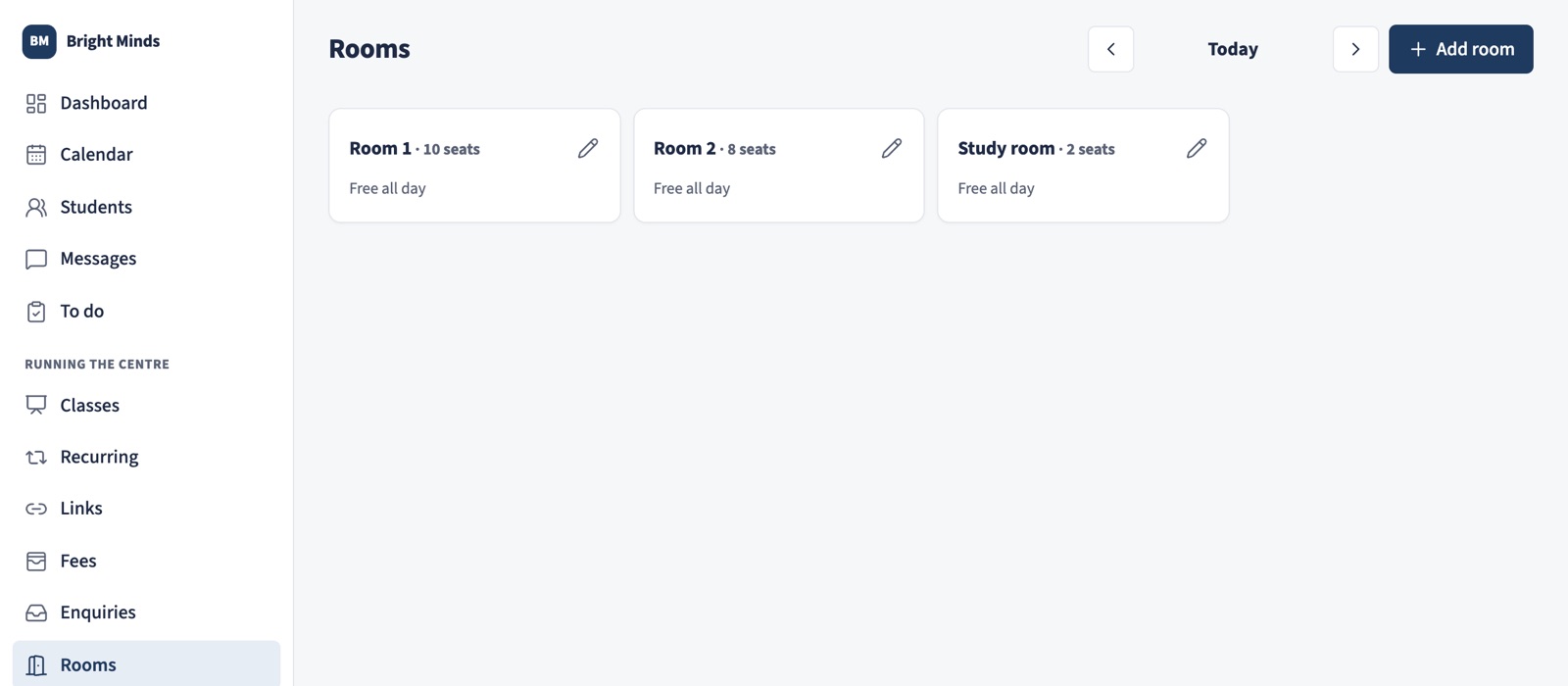
Go to Rooms › Add room and give it a name, and the number of seats if you like. Then choose the room on each class. A room can't be booked twice at the same time, and the Rooms page shows each day room by room.
Stopping a class
Tap the pencil on the class, then Stop class. Its sessions from today are cancelled without messages to parents. Sessions already held stay, with their fees.