 MyTuitionClass
Set up your centre
Setting up a centre takes about half an hour. The Dashboard has a getting-started list that ticks off each step as you do it.
Start your free trial
Go to app.mytuitionclass.com/start and fill in your centre's name, your name, your email and a password. We email you a link: open it within 24 hours and your centre is ready. The trial is free for 30 days, with no card needed.
The getting-started list
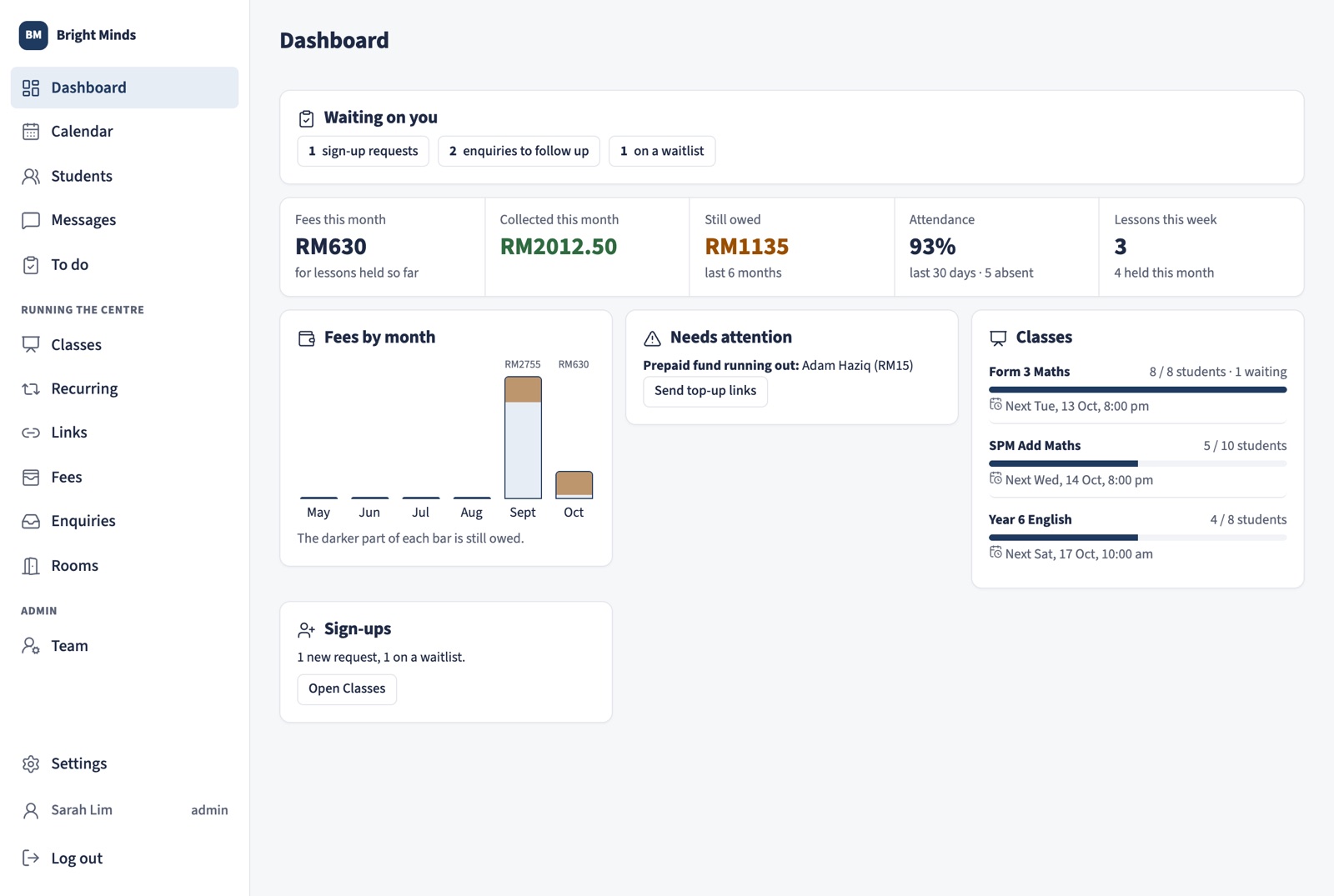
Open Dashboard. Under Getting started you'll see six steps, each with a button that takes you to the right page. A step ticks itself off once it's done, and the next one is highlighted. Until you finish, the Calendar shows a one-line reminder with See the steps. If you'd rather not see the list, hide it with the ×.
1. Add your centre's name and logo
- Go to Settings › Your centre › Name and logo.
- Type your Centre name. It saves when you click away.
- Tap Upload logo. A square picture works best. Without a logo, parents see your initials.
Parents see your name and logo at the top of every page and message, not ours.
2. Add how parents pay you
Go to Settings › Messages to parents › Fees and payment details. In Payment details shown on statements, write one line, for example Maybank 1234 5678 9012 (Bright Minds Learning Centre) or DuitNow 012-345 6789. It appears on statements, invoices and payment pages. While you're there, check Your name in messages to parents.
3. Add your teachers
Go to Team › Add teacher. Each teacher gets their own calendar and sign-in. Skip this if it's just you. See Teachers, sign-in and passwords.
4. Bring in your students
Go to Students and use Import for a spreadsheet, or Add student for one at a time. See Import your students from a spreadsheet.
5. Set up your classes and lessons
Add group classes on Classes, and weekly one-to-one lessons on Recurring. See Group classes and the register and One-to-one lessons and booking links.
6. Share your links with parents
Share your centre timetable so new parents can sign up, and send each family their own page. See Sign-ups from parents and The parents' family page.
Worth a look next
- Settings › Schedule › Public holidays: choose your state, and holidays are blocked as whole days on your calendar (each teacher sets their own). Lessons already booked on a holiday are flagged so you can move them.
- Settings › Schedule › Unavailable times: times you're never free, such as the school run.
- Settings › Notifications: how you're told about bookings and sign-ups (push, Telegram or email).